Best WordPress Hosting: 12 Tests, Decision Tree, and Migration Checklist
The best WordPress hosting isn't one universal winner. The best host for your site depends on your stack (page builder vs lightweight theme, WooCommerce vs brochure site, plugin count), your traffic pattern (steady vs spikes, geographic distribution, logged-in vs anonymous users), and your risk tolerance (how quickly you need restores, how much hands-on help you want, how critical uptime is).
This guide gives you everything you need to choose wisely: a decision tree to select the right hosting type, 12 practical tests you can run during a trial, a reusable scorecard, migration checklists with minimal downtime, and recommended specs by site profile. You'll learn why VPS often underperforms Semi-Dedicated for WordPress and why hosting is really about verifiable performance, not marketing claims.
What "best WordPress hosting" should prove
A provider can call itself "fast," "managed," or "premium." What matters is whether you can consistently verify:
- Speed you can measure (TTFB, cache behavior, real-world performance)
- Stability you can trust (uptime, backups, restores, change safety)
- Support that solves problems (not copy/paste replies)
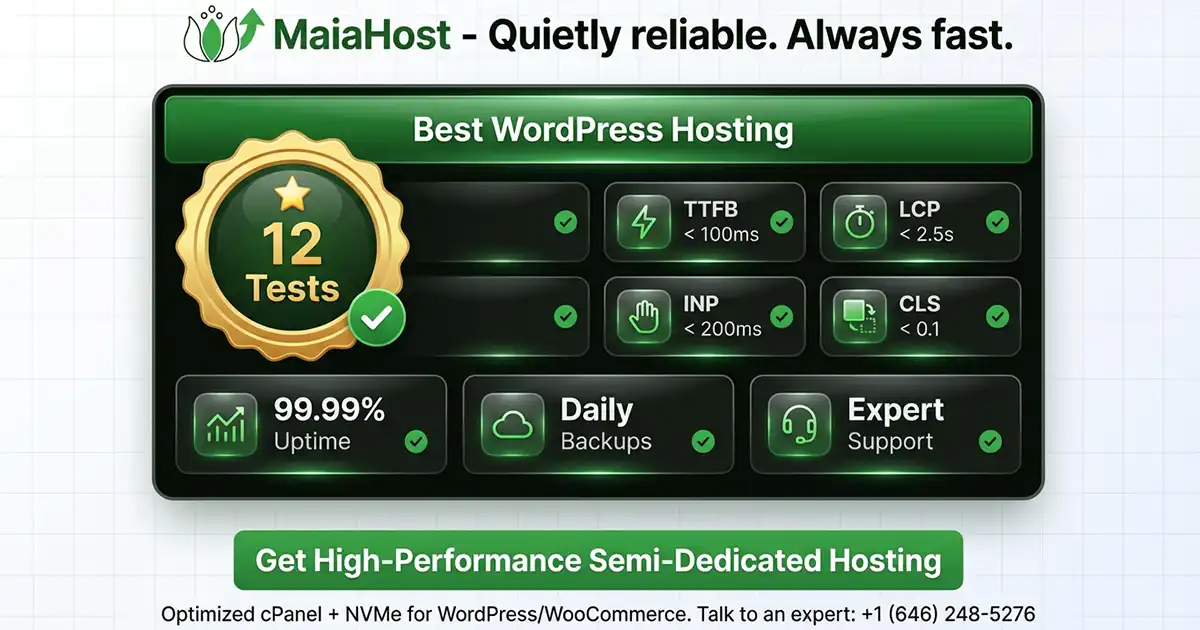
Google's Core Web Vitals focus on user experience metrics like LCP, INP, and CLS, with commonly cited "good" targets like LCP ≤ 2.5s, INP < 200ms, CLS < 0.1. You don't need to obsess over perfection—but you do want a hosting setup that helps you meet (or move toward) those targets reliably.
What matters most for WordPress performance
Before we compare hosting types, understand what makes WordPress fast in the real world:
- Fast server response (TTFB) Influenced by CPU, PHP performance, database speed, caching, and how busy the server is.
- Caching layers
- Page cache (biggest win for most marketing sites and blogs)
- Object cache (helps sites with lots of DB queries—WooCommerce, membership, LMS)
- PHP OPcache (reduces PHP compilation overhead)
- Resource headroom WordPress speed often drops when CPU/RAM/IO are tight—especially during traffic spikes, backups, or heavy admin tasks.
- Plugin and theme choices Page builders, analytics scripts, and "do-everything" plugins can add more overhead than people expect.
- Operational quality Support that can actually troubleshoot WordPress, plus monitoring, updates guidance, and security basics.
Hosting is less about "shared vs VPS" and more about whether your plan delivers these reliably.
Shared vs Managed WordPress vs VPS: the plain-English differences
Shared hosting (good value for most small WordPress sites)
Shared hosting means your site runs on a server that hosts many accounts, sharing resources.
Shared hosting can be an excellent choice when:
- Your site is a blog, brochure site, or small-business site
- You have steady (not massive) traffic
- You can rely on caching (or your host provides effective caching)
- You don't need a custom server stack
Where shared hosting can struggle:
- Heavy WooCommerce stores (dynamic pages + logged-in users)
- Spiky traffic + no caching strategy
- Lots of plugins, page builders, or high admin workload
- Resource limits that are too tight or unpredictable
Managed WordPress hosting (best when you want "WordPress handled")
Managed WordPress hosting is optimized specifically for WordPress. It usually includes:
- WordPress-aware support (themes, plugins, performance troubleshooting)
- WordPress-focused tuning (PHP settings, caching defaults, security hardening)
- Operational guardrails (help with updates, compatibility, best practices)
Managed is often the fastest path to "it just works" when WordPress isn't your full-time job.
VPS hosting (best when you need control, not just "speed")
A VPS (Virtual Private Server) gives you an isolated environment with your own allocated resources (CPU/RAM/storage), but it also means you (or someone you hire) manage configuration.
VPS makes sense if you need:
- A custom stack or unusual server requirements
- Multiple apps/services on the same server
- Specialized security or compliance controls
- Root access and deep configuration control
But for WordPress alone, VPS is frequently chosen for the wrong reason: people assume it's always faster. It isn't—especially at common price points.
Important note: VPS is often slower than Semi-Dedicated for WordPress
For many WordPress sites, a Semi-Dedicated plan can outperform a VPS at a similar monthly budget.
Why that happens:
- CPU performance: many VPS tiers offer limited CPU share; WordPress is sensitive to single-thread performance.
- Overhead & tuning: VPS performance depends heavily on how well it's configured (web server, PHP-FPM, caching, database tuning).
- Operational friction: if you're not a sysadmin, it's easy to run a VPS in a "technically online but slow" state.
So while VPS can be the right choice for custom environments, it's typically not the best default choice for WordPress sites that just need fast pages and reliable support.
Decision tree: choose the best WordPress hosting type
Use this decision tree in order:
START
│
├─ Q1: Do you need a custom server environment (root access, special packages, multiple services)?
│     ├─ Yes → VPS (or Dedicated/Cloud) is likely required.
│     └─ No  → go to Q2
│
├─ Q2: Is WordPress speed/support a priority but you don't want to manage server tuning?
│     ├─ Yes → [Managed WordPress hosting](/cms/wordpress/) or [Semi-Dedicated](/hosting/semi-dedicated-servers/) (with WP-aware support).
│     └─ No  → go to Q3
│
├─ Q3: Is it a brochure site / blog / small business site with stable traffic?
│     ├─ Yes → [Shared hosting](/hosting/shared/) is usually enough (with proper [caching](/technologies/caching-performance/)).
│     └─ No  → go to Q4
│
├─ Q4: Is it [WooCommerce](/glossary#woocommerce), membership, LMS, or lots of logged-in/dynamic pages?
│     ├─ Yes → [Semi-Dedicated](/hosting/semi-dedicated-servers/) or [Managed WordPress](/cms/wordpress/) ([object cache](/glossary#object-cache) + headroom).
│     └─ No  → Shared can work; upgrade if you see slow admin or traffic spikes.
│
END
If you're still unsure, default to the plan that gives you:
- predictable resource headroom
- WordPress-aware support
- a caching strategy you understand (or your host configures)
Recommended specs for WordPress (simple targets that work)
These are practical targets for most WordPress sites. They're not "requirements," but they help you avoid common bottlenecks.
Profile A: New site, blog, brochure site (low to moderate traffic)
- PHP: modern version (current stable recommended)
- Memory: enough PHP memory for your theme/plugins
- Caching: full-page cache + OPcache
- Best plan type: Shared or Managed WordPress (entry tier)
Profile B: Small business site with lead gen + a lot of plugins
- Caching: full-page cache + OPcache (object cache helps if DB-heavy)
- Headroom: enough CPU/RAM so admin screens stay responsive
- Best plan type: Higher-tier Shared, Managed WordPress, or Semi-Dedicated
Profile C: WooCommerce store, membership, LMS, bookings
- Caching: full-page cache where possible + object cache (Redis/Memcached) + OPcache
- Database: tuned MySQL/MariaDB; fast storage matters
- Best plan type: Semi-Dedicated or Managed WordPress (performance-focused)
Profile D: Agency / multiple client sites / high traffic
- Isolation: account separation, predictable resources
- Operational needs: easy migrations, staging workflows, fast support
- Best plan type: Semi-Dedicated, custom VPS/Cloud, or Dedicated (depending on workload)
Before you test: make it a fair comparison
If you change five things at once, your results won't mean much. For a clean comparison, control the variables:
- Use the same WordPress version, theme, and plugin set
- Use the same caching rules (either "cache on" for all hosts, or "cache off" for all hosts)
- Test the same content (copy the same database + uploads)
- Test the same regions (if your visitors are EU-heavy, test EU endpoints)
- Disable one-off speed boosters that won't exist in production (temporary plugins, extra CDNs, etc.)
Tip: Create a small "test site bundle" you can deploy anywhere: a representative homepage, a blog post page, and (if relevant) a product page + cart/checkout.
The 12 practical tests
1) Measure TTFB (uncached and cached)
TTFB (time to first byte) is a quick way to see how responsive the server is. Test two modes:
- Uncached: a cold request (after purging cache or using a unique URL parameter)
- Cached: a warm request (repeat immediately after a cached request)
How to score it:
- Fast, consistent TTFB across repeats is usually a good sign.
- Big spikes suggest throttling, overloaded neighbors, or inefficient stack tuning.
2) Verify Core Web Vitals approach: field vs lab
Many "speed tests" are lab-only. That's useful—but the real goal is real user experience.
- Lab tests (e.g., Lighthouse) are controlled and repeatable.
- Field data (Chrome UX Report / CrUX) reflects actual visitors and devices.
During a trial you'll mostly use lab + synthetic testing. After launch, confirm progress in field data once enough traffic exists.
3) Run a Lighthouse baseline on 3 key templates
Pick three pages that represent your site:
- Homepage
- A content page (post or landing page)
- A dynamic page (search results, product, category, etc.)
Run Lighthouse at least 3 times per page and record the median.
What you're looking for:
- Consistency between runs
- Obvious bottlenecks (render-blocking scripts, oversized images, layout shift)
4) Check caching behavior in headers
Caching shouldn't be "magic." You should be able to verify it.
On a cached page, look for signals in response headers such as:
- Cache-Control / Expires / Age
- ETag / Last-Modified
- Host-specific cache headers (varies by provider)
If a host claims "server-level caching," you should still be able to confirm:
- Cache hits vs misses
- How long content stays cached
- Whether logged-in users bypass cache correctly
5) Confirm a persistent object cache (when it matters)
For dynamic sites, WordPress benefits from a persistent object cache (commonly Redis or Memcached). It can significantly reduce repeated database work—especially on WooCommerce, membership sites, and sites with heavy queries.
How to test:
- Check WordPress Site Health for object cache recommendations
- Compare backend/admin responsiveness with and without object caching
- Watch slow queries under load (if you have access)
6) Validate database performance under "real" plugin load
A "fast empty WordPress install" proves nothing.
How to test:
- Import your actual site data (or a staging copy)
- Trigger common user flows (search, filters, add-to-cart, account login)
- Watch for pages that slow down only when the database is doing real work
Red flags:
- Admin screens taking seconds to load
- Search, filters, or cart steps slowing down unpredictably
7) Test PHP stack tuning (PHP version + OPcache)
Most WordPress sites run PHP. The "best WordPress hosting" should keep the PHP stack modern and tuned.
What to check:
- Current, supported PHP versions are available
- OPcache is enabled and appropriately sized
- Process management avoids timeouts during traffic bursts
8) Verify HTTP/2/HTTP/3 + SSL setup and real geographic latency
Even with good server performance, users far away can experience delays.
How to test:
- Check protocol support (HTTP/2 is baseline; HTTP/3 can help in some networks)
- Measure latency from the regions where your customers are
- Confirm SSL configuration is clean (no handshake weirdness, modern ciphers)
If your audience is spread out, a CDN and smart caching rules can matter more than raw server specs.
9) Run a small load test (carefully)
You don't need to DDoS your trial site. You just need to see if performance collapses under modest concurrency.
A simple approach:
- 10–25 virtual users, 3–5 minutes
- Mix of cached page hits + a few dynamic hits (search/cart/login)
- Watch response time stability and error rates
What you're looking for:
- Smooth scaling, not sudden 500 errors or timeouts
- No dramatic response time spikes when concurrency increases slightly
10) Uptime reality check: monitoring + transparency
Claims like "99.9% uptime" aren't enough. You want:
- A public status page (or clear incident communication)
- Monitoring you control (UptimeRobot, StatusCake, Pingdom, etc.)
- A clear understanding of maintenance windows and response process
If uptime is critical, look for a host that can explain redundancy and monitoring in plain English.
11) Backup + restore drill (not just "we do backups")
Backups are only valuable if restores are fast and reliable.
Test during trial:
- How often backups run and how long they're retained
- How quickly you can restore a single site
- Whether restores are self-serve, assisted, or ticket-only
- Whether you can restore files + database cleanly
A host that's truly "managed" should make restores straightforward.
12) Support test: run a real scenario (and score it)
Support quality is where "best" becomes obvious fast.
Create a realistic request, for example:
- A plugin conflict causing slow admin or 500 errors
- A caching exclusion needed for checkout
- A redirect loop after enabling HTTPS
- A broken cron task causing delayed emails
Score the response on:
- Speed (time to first meaningful reply)
- Accuracy (did they diagnose the root cause?)
- Clarity (steps you can follow, not vague advice)
- Ownership (did they follow through to a fix?)
Reusable comparison scorecard
Use this scorecard to compare providers consistently. Score each item 0–5:
- 0 = unacceptable / can't verify
- 3 = acceptable / meets baseline
- 5 = excellent / consistent + well-supported
best_wordpress_hosting_scorecard:
  test_pages:
    - homepage
    - content_page
    - dynamic_page

  scoring_scale:
    "0": "Cannot verify / fails"
    "1": "Very weak"
    "2": "Below average"
    "3": "Good baseline"
    "4": "Strong"
    "5": "Excellent"

  tests:
    1_ttfb_uncached_and_cached:
      score: 0
      notes: ""
    2_field_vs_lab_plan:
      score: 0
      notes: ""
    3_lighthouse_median_on_3_pages:
      score: 0
      notes: ""
    4_cache_headers_and_hit_rate:
      score: 0
      notes: ""
    5_persistent_object_cache:
      score: 0
      notes: ""
    6_database_under_real_plugins:
      score: 0
      notes: ""
    7_php_stack_and_opcache:
      score: 0
      notes: ""
    8_http2_http3_tls_latency:
      score: 0
      notes: ""
    9_small_load_test_stability:
      score: 0
      notes: ""
    10_uptime_monitoring_transparency:
      score: 0
      notes: ""
    11_backup_and_restore_drill:
      score: 0
      notes: ""
    12_support_real_scenario:
      score: 0
      notes: ""

  total_score_out_of_60: 0
How to interpret the score
- 50–60: Excellent fit for performance + operations (rare)
- 40–49: Strong choice for most serious sites
- 30–39: Fine for low-risk projects, but watch the weak spots
- Below 30: You'll likely "pay later" in speed issues or support frustration
Recommended hosting by site type
Best WordPress hosting for a blog or brochure site
You want:
- Reliable caching
- Stable TTFB
- Good support for themes/plugins
- Simple backups and restores
A solid managed WordPress plan is usually the most cost-effective choice. Check out our shared hosting 2026 guide for more options.
Best WordPress hosting for agencies and multi-site owners
You want:
- Multi-site efficiency (multiple installs under one account)
- Easy staging and safe deployment
- Fast, accurate support (especially for plugin conflicts)
- Consistent performance across several sites
Best WordPress hosting for WooCommerce stores
You want:
- Strong dynamic performance (cart, checkout, account)
- Object caching (often essential)
- Careful caching exclusions for logged-in/checkout flows
- Database and PHP tuning that holds up under traffic and promotions
For WooCommerce, don't pick a host based only on a homepage speed test.
Migration checklist: switch WordPress hosts with minimal downtime
This checklist assumes you're moving a live WordPress site and want a smooth cutover.
1) Prep (1–3 days before cutover)
- Lower DNS TTL (e.g., to 300 seconds) at your DNS provider
- Audit plugins:
- remove unused plugins/themes
- update outdated plugins and WordPress core (if safe)
- Record key settings:
- WordPress admin URL and logins
- caching/CDN settings
- email deliverability settings (SPF/DKIM/DMARC) if applicable
- Take a verified backup (files + database)
2) Copy the site to the new host
- Create the new hosting account and a fresh WordPress install (if required)
- Migrate using one of:
- a professional migration (best for important sites)
- a trusted migration plugin
- manual migration (rsync + database export/import) if you're technical
- Confirm:
3) Test before DNS cutover
- Use a temporary URL or hosts-file preview
- Test the critical path:
- homepage, top landing pages, contact form
- WooCommerce checkout (if applicable)
- login/logout flows
- search and filters
- Turn on caching after confirming dynamic functionality
4) Cutover day
- Put the old site in maintenance mode (or disable write actions) briefly
- Run a final database sync (for stores and active sites)
- Update DNS to point to the new host
- Verify SSL/HTTPS on the new server
5) Post-move validation (same day + next 48 hours)
- Check error logs for PHP warnings/fatal errors
- Watch performance and uptime
- Re-enable backups and monitoring
- Re-submit sitemap in Google Search Console (if needed)
- Keep the old hosting active for at least 3–7 days as a safety net
Where MaiaHost fits (Managed WordPress Hosting + Performance Optimization)
If you want WordPress hosting that's built around real-world operations (not oversold resources and slow ticket loops), MaiaHost is designed for exactly that:
- Managed WordPress Hosting focused on stability, speed tuning, and real support
- Not oversold environments (consistent performance matters more than flashy "unlimited" claims)
- Outstanding uptime track record
- Fast expert support with direct phone access (no long wait), handled by experienced web developers
- Support hours that work well for both US and Europe (2am–5pm EST)
Our shared Managed WordPress hosting packages
- Maia Single: 1 website — ideal for a business site, portfolio, or single brand
- Maia Multiple: up to 6 websites — ideal for freelancers, agencies, and multi-site owners
- Semi-Dedicated: for larger sites and agencies that need more consistent resources
If you're not sure which is best for your site, we'll recommend a plan based on your actual stack (theme, plugins, WooCommerce, traffic patterns).
Performance Optimization (when "hosting" isn't the only bottleneck)
Sometimes the host is fine—but the site's build (page builder, plugins, heavy scripts, unoptimized images, database bloat) is the real limiter.
Our Performance Optimization focuses on the issues that move real results:
- Reducing server response delays (TTFB)
- Improving caching behavior (page cache + object cache where appropriate)
- Fixing Core Web Vitals blockers (LCP elements, layout shifts, main-thread work)
- Cleaning up plugin conflicts and unnecessary load
Quick checklist: choosing the best WordPress host
Use this as your final sanity check:
- Can I verify caching and see cache hits?
- Are results consistent (not fast once, slow later)?
- Do backups restore cleanly and quickly?
- Can support solve a real problem, not just send links?
- Does the plan match my site type (blog vs agency vs WooCommerce)?
If you treat "best WordPress hosting" as a measurable outcome—not a label—you'll choose correctly.
FAQs
Do I need "managed WordPress hosting" to run WordPress?
No. But you do need:
- reliable resources
- correct server configuration
- caching
- support that understands WordPress when something breaks
Managed hosting is often the easiest path to those outcomes.
Will VPS automatically make my WordPress site faster?
Not automatically. A VPS can be fast, but only if it's sized correctly and configured well. For many WordPress sites, a Semi-Dedicated plan delivers better real-world speed with less operational effort.
When should I upgrade from shared hosting?
Common signs:
- admin dashboard feels slow
- TTFB spikes during traffic bursts
- WooCommerce pages slow down under load
- you need more consistent performance
- you're spending too much time "tuning" instead of running the business
What's the difference between "managed" and "semi-dedicated" WordPress hosting?
Managed WordPress is optimized specifically for WordPress (themes, plugins, auto-updates, WordPress-aware support). Semi-Dedicated gives you more isolated resources and control, but still includes professional support. Choose managed if you want simplicity; choose semi-dedicated if you need more headroom or run multiple sites.
How do I test WordPress hosting before committing?
Use the 12 tests in this guide. Most hosts offer trials or money-back guarantees—use them. Test TTFB, Core Web Vitals, caching behavior, database performance, and support responsiveness. Don't judge a host on a single speed test; use the scorecard to compare fairly.
Does hosting affect SEO?
Yes, indirectly. Google uses Core Web Vitals as a ranking factor, and page speed matters for crawlability and indexing. But hosting is just one piece—your theme, plugins, images, and content structure matter more. If your hosting gives you a fast TTFB and reliable uptime, you're in good shape.
Can I use shared hosting for WooCommerce?
Yes, if your store is small and traffic is steady. But WooCommerce sites benefit from object caching and more headroom than typical shared hosting provides. If you see slow checkout or admin screens, upgrade to semi-dedicated or managed WordPress.
Related reading
For deeper dives into hosting types and hosting decisions, check out:
- Web Hosting Explained — the pillar guide on hosting types, costs, and performance
- Shared Hosting 2026 — a detailed look at shared hosting trade-offs and best use cases
- WordPress Hosting: What Makes It Different — why WordPress hosting exists and how it differs from generic hosting
- Elegant Themes Divi Hosting Plans — a review of theme-bundled hosting options
- Web Hosting Cost 2026 — budgeting and ROI for different hosting tiers
Sources
- Google Search Central: Core Web Vitals documentation (LCP, INP, CLS targets)
- web.dev: INP replacing FID as a Core Web Vital (March 12, 2024)
- Google Developers: PageSpeed Insights (lab vs field data, CrUX integration)
- WordPress Developer Resources: Caching (page cache, object cache, server caching)
- WordPress Core blog: Site Health cache checks and persistent object cache guidance
- WordPress.org — Requirements: https://wordpress.org/about/requirements/
- WordPress.org — Download (recommended server versions): https://wordpress.org/download/
- Google web.dev — Web Vitals overview: https://web.dev/articles/vitals
- Google Search Central — Core Web Vitals & search: https://developers.google.com/search/docs/appearance/core-web-vitals
- WordPress Developer Resources — Cache (Advanced Administration Handbook): https://developer.wordpress.org/advanced-administration/performance/cache/
Talk to an expert and we’ll tell you the best setup for your project.
Explore plans or talk to us—no sales scripts, just practical advice from real engineers.